How to Take Online Bookings for Courts, Lanes and Rooms
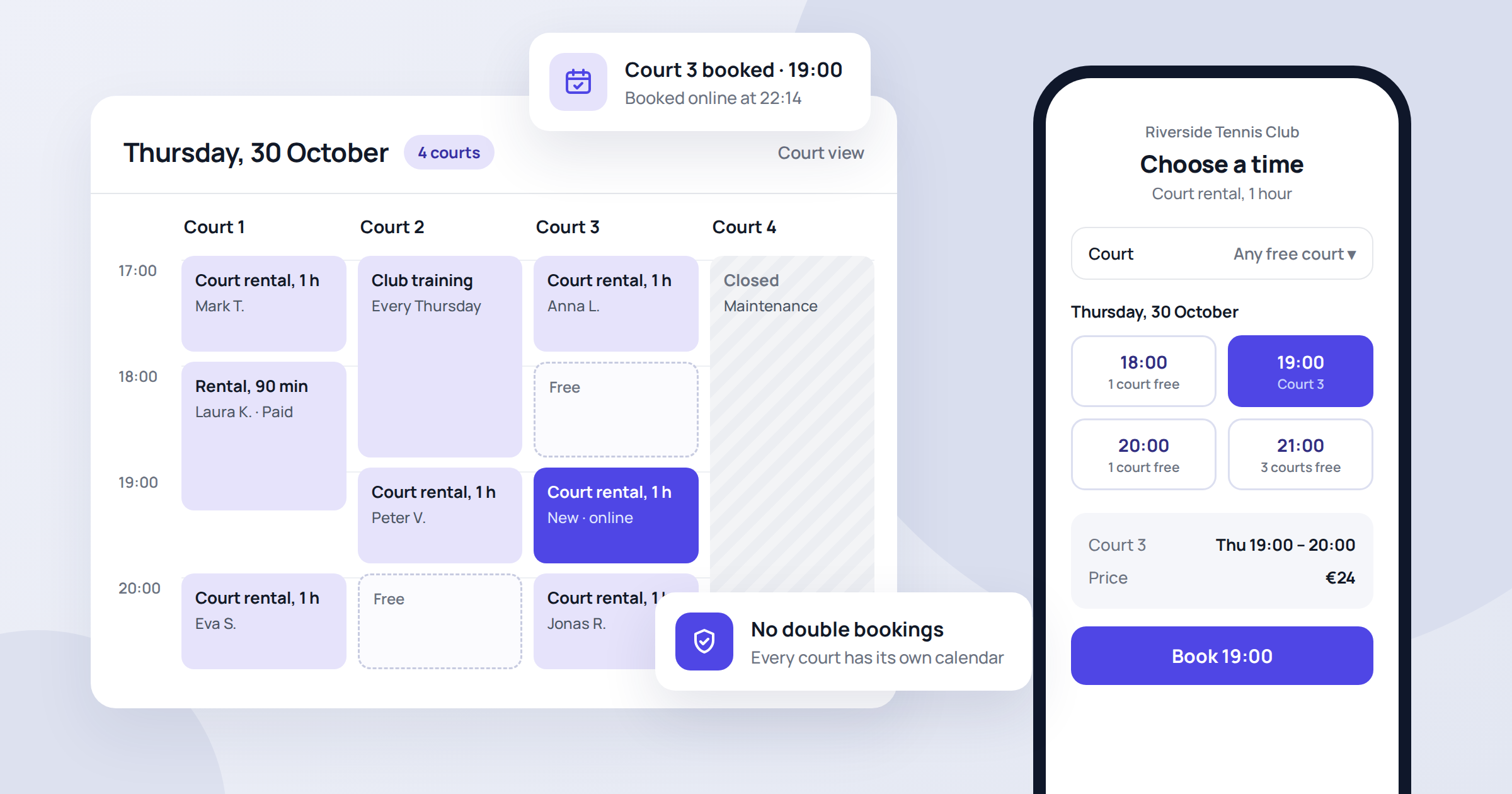
Most booking advice is written for appointments: one client, one hairdresser, one time slot. But many businesses don't rent out a person's time. They rent out a place: a tennis or padel court, an archery lane, a golf simulator, a rehearsal room, a sauna or a meeting room. The scheduling problem is a little different. Customers care about getting a free court at 18:00, not about who works that evening, and with several identical courts you want every free slot to show up in one place. This guide explains how to set up online booking for shared resources in 2026, what to decide before you start, and the mistakes that cause double bookings and empty courts.
What makes resource booking different
When you book a person, their time is the limit. When you book a resource, the space or equipment is the limit, and that changes a few things:
- Customers pick a time first. Most people don't mind whether they play on court 2 or court 3. They want the earliest free slot that fits their evening.
- Resources are often identical. Four courts with the same surface and the same price should show up as one set of available times, not four separate calendars.
- Opening hours belong to the venue. A court is available whenever the hall is open, unless it's closed for maintenance or a tournament.
- Booking lengths are fixed blocks. One hour, 90 minutes, two hours. Odd lengths leave gaps nobody can book.
- Peak demand is predictable. Weekday evenings and weekend mornings fill up first, so that's where no-shows and late cancellations hurt most.
Step 1: List every bookable resource
Start by writing down everything a customer can book on its own. A useful test: if two customers can use two of them at the same time without getting in each other's way, they are separate resources.
- A tennis club with four courts has four resources.
- An archery range with six lanes has six resources, even if a group sometimes books several lanes together.
- A studio with a big room and a small room has two resources, even though they share one entrance.
Give each one a short name customers will recognise, such as "Court 1", "Lane 4" or "Small studio". If a resource is different from the others, for example an indoor court next to outdoor ones, put that in the name.
Step 2: Decide what customers actually book
Next, define the bookings themselves. These are what customers choose from, so name them the way customers think: "Court rental, 1 hour", "Court rental, 90 minutes", "Lane hire, 1 hour", "Rehearsal room, 2 hours".
- Keep the lengths few and fixed. Two or three options are usually enough. Each extra option makes the schedule harder to fill without gaps.
- Use lengths that fit your grid. If most bookings start on the hour, a 75-minute option leaves 45-minute holes that rarely get used.
- Include turnover time if you need it. If a room needs ten minutes of cleaning between groups, build that into the length of the booking. The same goes for treatment rooms in a massage salon.
- Separate rentals from lessons. "Court rental" and "Private lesson with a coach" are different bookings and should be listed separately.
Step 3: Set availability per resource
Each resource needs its own bookable hours. Usually these are simply your opening hours, but resources rarely behave exactly the same:
- One court is reserved for club training on Tuesday evenings.
- A lane is closed for repairs next Friday.
- The big room opens later at weekends.
Keeping these exceptions in the booking system, rather than in someone's head, is what prevents double bookings. If a court is closed, block it in the calendar before the first customer tries to book it.
It also helps to decide how far ahead customers can book. Regular players like to reserve their usual slot weeks ahead. If you want to keep evenings open for walk-ins or members, a shorter booking window keeps the calendar from filling up months in advance.
Make booking easier for your clients
Let clients book online 24/7, send automatic reminders and cut no-shows. Set up your booking page in minutes.
No credit card required
Step 4: Protect your peak hours
An empty court at 11:00 on a Tuesday costs you little. An empty court at 19:00 on a Thursday that someone booked and didn't turn up for costs you a full-price slot you could have sold twice. Focus your rules on those slots:
- Send reminders. A reminder by SMS or email a few hours before the booking catches most forgotten slots while there's still time to rebook them. See our guide on reducing no-shows with reminders.
- Make cancelling easy. A customer who can cancel with one click from the reminder frees the court for someone else. A customer who would have to call usually just doesn't show up.
- Ask for payment upfront on popular slots. Prepayment or a deposit works well for rentals because the price is known in advance. Our article on taking deposits for appointments covers how much to ask for and how to word the cancellation policy.
How to set this up in timedule
timedule books people's time by default, but the same tools work for courts, lanes and rooms. The idea is simple: each resource gets its own calendar, set up the same way you would add an employee.
- Add each resource as a staff member. In the dashboard, open Staff and add "Court 1", "Court 2" and so on. Each needs its own email address. If you use one inbox, many email providers let you add a suffix, such as club+court1@example.com. Leave dashboard access turned off, since nobody logs in as a court.
- Put each resource at the right location. If you run more than one venue, create a location for each and attach the resources to it. Customers pick the venue first and only see its courts.
- Create your bookings as services. Add "Court rental, 1 hour", "Court rental, 90 minutes" and so on, with their prices and lengths, and assign them to the resources they apply to. An indoor-only option can be assigned to the indoor courts only.
- Set the hours. On the Availability page, give each resource its weekly hours, block out regular reserved times, and mark single days as unavailable for maintenance or events.
- Turn on reminders and, if you want, online payment. Enable SMS or email reminders in Settings, and connect PayPal or Square to take full payment or a deposit when customers book.
- Share your booking link. Add it to your website, Google profile and social media pages.
When a customer chooses "Court rental, 1 hour", timedule shows the free times across all courts at that location together, so they just pick a time. Customers who want a particular court can still choose it from the list. Bookings for every court appear in one calendar for your staff.
Keep in mind that every resource counts as one staff member on your plan, so a club with six courts needs a plan with room for six. Check the pricing page for the limits.
Where this setup doesn't fit
One booking in timedule reserves one calendar for one customer. That covers renting out a whole court, lane or room. It isn't designed for:
- Classes with many places. A yoga class with 15 spots, where each participant books separately, needs seat counting. timedule doesn't count seats per class.
- Bookings that need two resources at once. A coached lesson that needs both a coach and a court is two calendars. A practical workaround is to keep a fixed court for lessons during the coach's teaching hours and remove those hours from the court's own availability.
- Prices that change by time of day. Each service has one fixed price, so timedule can't automatically charge more for the same court at peak hours.
If most of your business is court, lane or room rental, these limits rarely get in the way. If most of it is group classes, look for a tool built around class schedules.
Conclusion: one calendar per resource, clear rules for busy times
Booking courts, lanes and rooms online comes down to a few decisions: list every resource separately, offer a small number of fixed booking lengths, keep each resource's hours and closures in the system, and protect your busiest slots with reminders and prepayment. Customers then see free times instantly, and your staff stop juggling phone calls and spreadsheets.
If you'd like to try it, set up timedule for your range, club or studio and add your first resources in a few minutes.
Online booking for your industry
Ready to dive in?
Start your free trial today.
Try our online booking software, and see how easy it is to manage your appointments.