How to Add a Booking Button to Your Website (WordPress, Wix, Squarespace and Plain HTML)
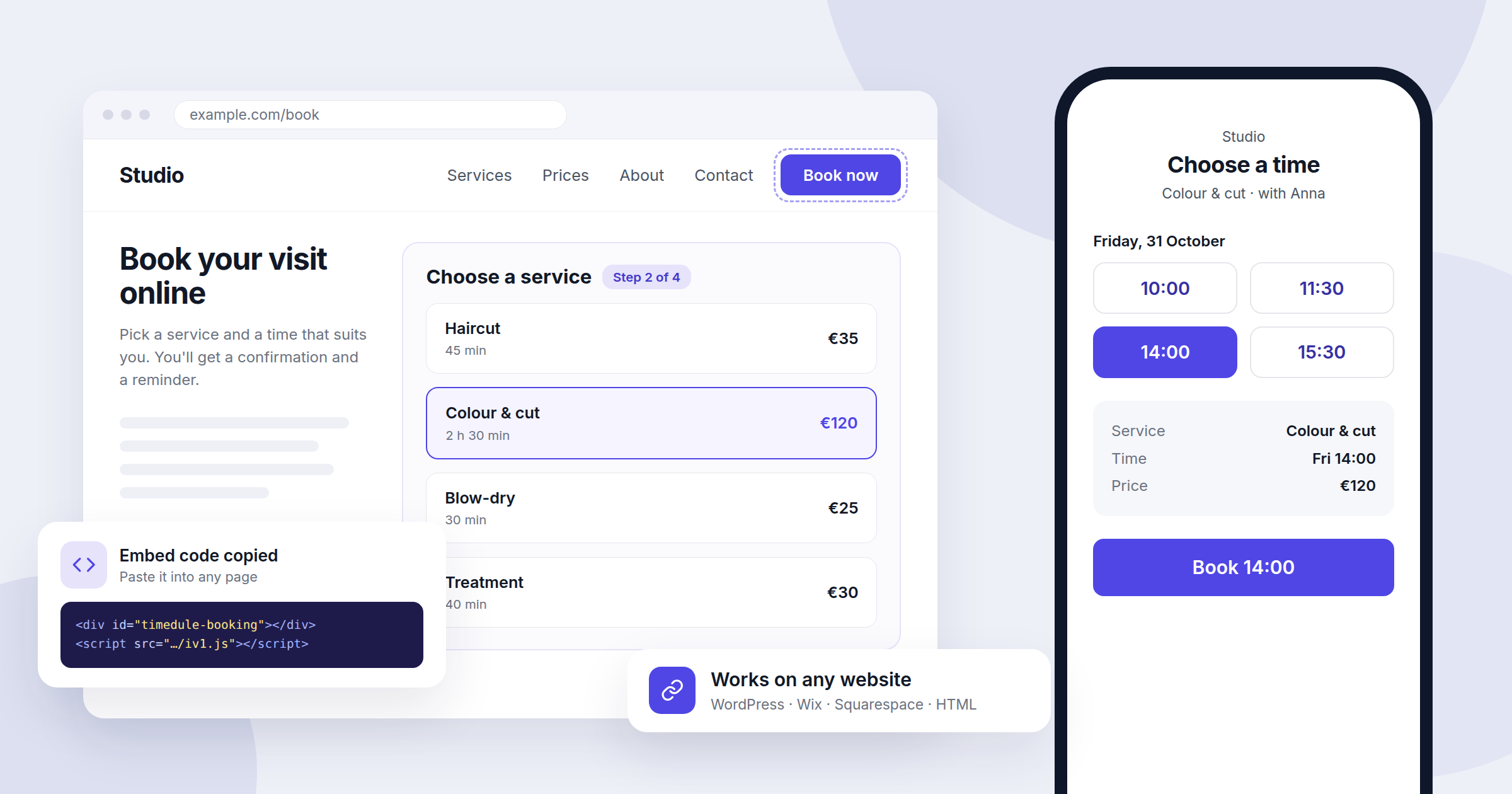
Once your online booking is set up, the next job is getting customers to it. Most of them will find you through your website, so that's where booking has to be easiest. A visitor who has to look for a phone number or send a message often gives up and books with someone else. This guide shows the two ways to add booking to your site in 2026, a booking button or a booking form embedded in the page, and walks through the steps for WordPress, Wix, Squarespace and plain HTML.
Button or embedded form: which one to use
There are two common ways to put booking on a website, and many businesses use both.
- A booking button is a normal link that opens your booking page. It works on every website builder and every plan, takes a minute to add, and you can repeat it in your menu, on service pages and in the footer.
- An embedded booking form shows the whole booking flow inside one of your own pages, so visitors never leave your site. It takes a little longer to set up, and some website builders only allow embed code on paid plans.
A good default: put a "Book now" button in the header of every page, and embed the full form on one dedicated "Book" page that the button points to. If your website builder doesn't allow embed code, the button on its own works fine.
Before you start: get your link and embed code
In timedule, open Booking website in the dashboard and go to the Link & embed tab. You'll find two things there:
- Booking address: your booking page link, such as https://yourbusiness.timedule.com. Click Copy link. If you want a shorter or clearer address, click Edit Address and pick a different subdomain before you share it anywhere.
- Integration into your website: a short piece of code that shows the booking form on your site. Click Copy code.
The code looks like this, with your company's own ID at the end:
<div id="timedule-booking"></div>
<script src="https://timedule.com/iv1.js" type="text/javascript"></script>
<script type="text/javascript">window.timeduleInit("your-company-id");</script>
Always copy it from your dashboard rather than from this article, so the ID is right. Paste the code exactly as it is. The first line marks where the form appears, and the other two load the form into that spot.
WordPress
Button: in the block editor, add a Buttons block where you want it, type "Book now" and paste your booking link as the button's link. To add it to the main menu, go to Appearance → Menus (or Appearance → Editor → Navigation on block themes) and add a custom link with your booking address.
Embedded form:
- Create a new page called "Book" or open the page where the form should go.
- Add a Custom HTML block.
- Paste the embed code from your dashboard and publish the page.
If you use a page builder such as Elementor or Divi, use its HTML or Code widget instead. The steps are the same. On WordPress.com, scripts are usually removed on the cheaper plans, so the form may not appear. In that case use the button, or move to a plan that supports plugins.
Wix
Button: click Add Elements → Button, change the text to "Book now", then click the link icon, choose Web Address, paste your booking link and set it to open in the same window.
Embedded form:
- Open the page where the form should go and click Add Elements → Embed Code → Embed HTML.
- Click Enter Code, choose Code, paste the embed code and click Update.
- Drag the edges of the element so it is as wide as your content and about 750 pixels tall. Wix shows embedded code inside a box of the size you set, so a box that is too small cuts the form off.
- Check the mobile view in the editor and resize the element there too.
Squarespace
Button: edit the page, click Add Block → Button, type "Book now" and paste your booking link. For the header, open the site header settings and turn on the header button, then point it to the same link.
Embedded form:
- Edit the page and click Add Block → Code.
- Paste the embed code, make sure the mode is set to HTML, and turn off "Display Source".
- Save and check the page while logged out. Squarespace often doesn't run scripts in the editor preview, so the form may only appear on the live page.
JavaScript in code blocks is only available on some Squarespace plans. If the form doesn't appear on your live page, your plan probably doesn't allow it, and a button is the way to go.
Make booking easier for your clients
Let clients book online 24/7, send automatic reminders and cut no-shows. Set up your booking page in minutes.
No credit card required
Plain HTML and other website builders
If you or your developer edit the HTML directly, paste the embed code into the page body where the form should appear. For a button, a normal link is enough:
<a href="https://yourbusiness.timedule.com" class="book-button">Book now</a>Give it your site's button style so it looks like the rest of your design. The same approach works in most other builders, such as Webflow, Shopify, Weebly or Jimdo: look for a block called "HTML", "Code", "Embed" or "Custom code" and paste the embed code there.
Link straight to a service or location
If your site has a separate page for each service, link each one straight to that service so the customer skips a step. In timedule, open Services and copy the booking link next to the service. For several branches, open Locations and copy the link for each branch. That link opens the booking page with the location already chosen. A "Book a massage" button on your massage page that opens the massage times converts better than a general "Book now" that starts from the beginning.
Don't stop at your website
The same booking link works anywhere you can paste a link:
- Google Business Profile: add it as your booking or appointment link so people can book straight from Google Search and Maps.
- Instagram and Facebook: put it in your bio and on your page's action button.
- Email signature and messages: reply to booking requests with the link instead of going back and forth about times.
- Printed materials: the Link & embed tab also has a QR code you can download for the counter, flyers or business cards.
Check it before you announce it
- Make a test booking from your website on your own phone, the way a customer would, and then cancel it.
- Check the mobile layout. Most bookings happen on phones, so make sure the form isn't cut off and the button is easy to tap.
- Use one address everywhere. If you change your booking address later, links you've already shared will need updating, so choose it before you start sharing.
- Turn on reminders so the new online bookings actually turn up. Our guide on reducing no-shows explains how.
Conclusion: one button everywhere, one page with the full form
Adding booking to your website takes a few minutes on any platform: copy your link or embed code from the dashboard, add a "Book now" button to every page, and embed the form on one booking page if your plan allows it. Then share the same link on Google, social media and your printed materials, and customers can book whenever it suits them, including outside your opening hours.
If you don't have a booking page yet, see what timedule can do and create your booking page in a few minutes.
Online booking for your industry
Ready to dive in?
Start your free trial today.
Try our online booking software, and see how easy it is to manage your appointments.