How to Set Up Online Booking for Your Business: A Step-by-Step Guide
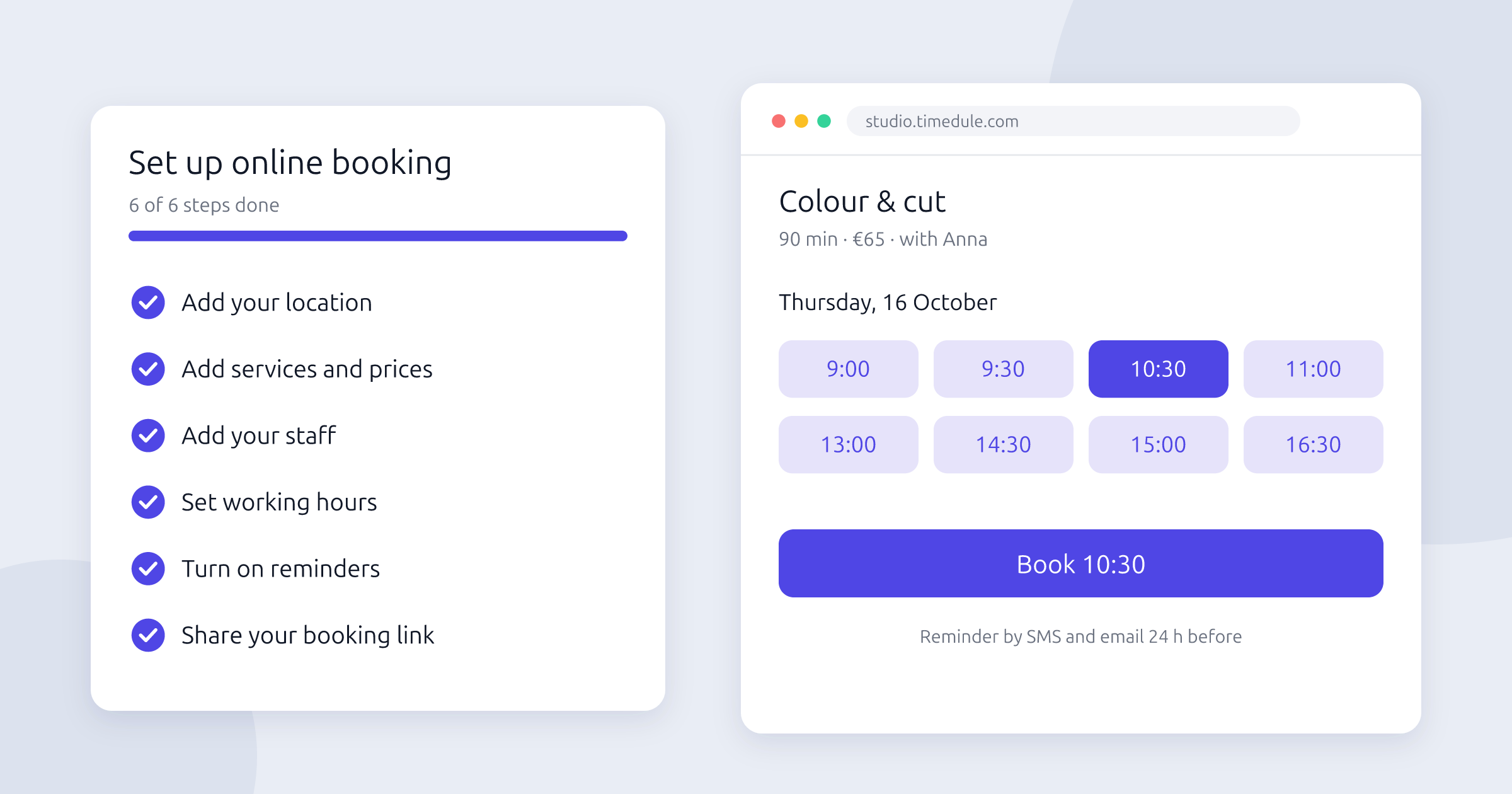
Online booking lets clients book an appointment whenever it suits them, including evenings and weekends when you're closed. It saves you phone calls, reduces double bookings and, combined with reminders, cuts no-shows. Setting it up is less work than most business owners expect. This step-by-step guide walks you through it, from listing your services to sharing your booking link, so your first online bookings can start arriving today.
Before you start: what you need
Have this information ready. It makes the setup much faster:
- Your services, with a price and a duration for each one.
- Your staff, and which services each person provides.
- Working hours for each staff member.
- Your address, or all addresses if you have more than one location.
- Your cancellation rules, if you want to ask for a deposit or prepayment.
Step 1: Create your account
Sign up with your email or a Google or Facebook account. In timedule, you can start a 14-day free trial without a credit card. After signing up, a short setup guide takes you through the first steps.
Step 2: Add your location
Add the place where you provide your services and its time zone, so clients always see the correct local time. In the address you can include tips such as "first floor, next to the lift". Pin the location on the map, and it will be shown on your booking page. If you have several locations, add them all: each one can have its own staff and services.
Step 3: Add your services and prices
Group your services into categories, such as "Haircuts", "Colouring" or "Treatments", so clients find what they need quickly. For each service add a clear name, the price and the duration. Accurate durations matter: they decide which times are shown as free, so your calendar never gets overbooked.
Step 4: Add your staff
Add each staff member with their name and email, choose where they work and which services they provide. Add a photo too: many clients like to choose who they book with. Staff can log in to see their own schedule.
Make booking easier for your clients
Let clients book online 24/7, send automatic reminders and cut no-shows. Set up your booking page in minutes.
No credit card required
Step 5: Set working hours
Set a weekly schedule for each staff member. Clients can only book times when a staff member is working and has at least one service assigned, so this step decides what your booking page shows. Add days off and holidays in advance so nobody books a time when you're away.
Step 6: Turn on reminders
Reminders are the easiest way to reduce no-shows. Turn on email reminders, which are free, and SMS reminders, which are sent 24 hours before the appointment. Edit the message text and set your SMS sender name, up to 11 characters, so clients recognise you. Every reminder includes a link the client can use to cancel, which frees the slot for someone else instead of leaving it empty.
Step 7: Take deposits or prepayments (optional)
For long or expensive services, a deposit makes clients more committed to turning up. Connect PayPal or Square, then choose whether clients pay the full price or a fixed deposit when booking. You can set deposits per service category, for example only for treatments longer than an hour. The money goes directly to your own account.
Step 8: Share your booking link everywhere
Your booking page has its own address. Put it everywhere clients look for you:
- Your website: copy a short code to embed the booking form on any page.
- Instagram and Facebook: add the link to your profile and to the "Book" button.
- Google Business Profile: add it as your booking link, so people can book straight from Google Search and Maps.
- Email signature and message replies: when someone asks "do you have a time on Friday?", send the link.
Step 9: Make a test booking
Book an appointment yourself, the way a client would, on both a phone and a computer. Check that the services, prices and times look right, that the booking appears in your calendar and that the confirmation arrives. Then cancel it using the link in the message, so you know that works too.
Tips for getting more online bookings
- Tell your regular clients they can now book online, for example with a short note on the receipt or a sign at the counter.
- Keep your working hours up to date. A booking page with few free times sends clients elsewhere.
- Use clear service names that clients understand, not internal abbreviations.
- Reply to phone and message requests with your booking link. Most clients will use it next time.
Ready to start? Create your timedule booking page for free and have it running in an afternoon. If you get stuck, the help centre answers the most common setup questions.
Ready to dive in?Start your free trial today.


Footer
Making the world a better place by making booking easier.
Start your free trialSolutions
© 2022 OÜ Vessent Inc. All rights reserved.