Renting out equipment by the day: online booking for trailers, tools and party gear
If you rent out trailers, carpet cleaners, tools or party gear, you know the question by heart: “Is it free on Saturday?” It comes by phone, by Messenger and by text, often in the evening. You check the notebook, write back, wait for an answer, and by then someone else may have asked for the same trailer. One wrong line in the notebook and two customers turn up for one item on the same morning.
A booking page answers that question for you. The customer sees which days the item is free, picks a pick-up day and a return day, sees the total and books. You see every rental in one calendar, and an item is never rented out twice for the same day. This guide shows how to set it up in timedule in one afternoon.
timedule: in use since 2022. From €14/month, no commission. We move your clients over for free. Try it free for 14 days.
Why a rental needs a different calendar
Most booking systems are built for appointments: a haircut at 10:00 for 45 minutes. A rental doesn't work like that. The trailer leaves on Friday morning and comes back on Sunday evening, and in between it is nobody else's. What the customer needs to choose is two days, not a time slot, and what you need to know is which items are out and when they come back.
timedule has a separate mode for this: Stays and rentals. A service rented by the day is picked up on one day and returned on a later day. The price is the price per day times the number of days, and every rental takes one specific item, so the calendar always knows which trailer went with whom.
Renting by the hour, for example a paddle board for two hours or a sauna trailer for an evening? That is an ordinary time-slot service that needs a piece of equipment: the booking page then offers only the times when that equipment is free. You can run both side by side in the same account.
Step 1: Add every item you rent out
Go to Settings → Features and switch on Stays and rentals (bookable resources switch on with it). Under What do you call them? choose Equipment, and the dashboard talks about equipment instead of rooms or cars.
Then open Equipment in the menu and click Add equipment once for every physical item: “Trailer 750 kg no. 1”, “Trailer 750 kg no. 2”, “Carpet cleaner A”. Add each item separately even if they are identical. That is how timedule knows that with two trailers, two customers can rent one each on the same weekend, and a third customer sees the weekend as taken.
Step 2: Create a rental service with a price per day
Under Services, add a new service and choose Day under Booked by. Choose carefully, because it cannot be changed after the service is created. Then fill in:
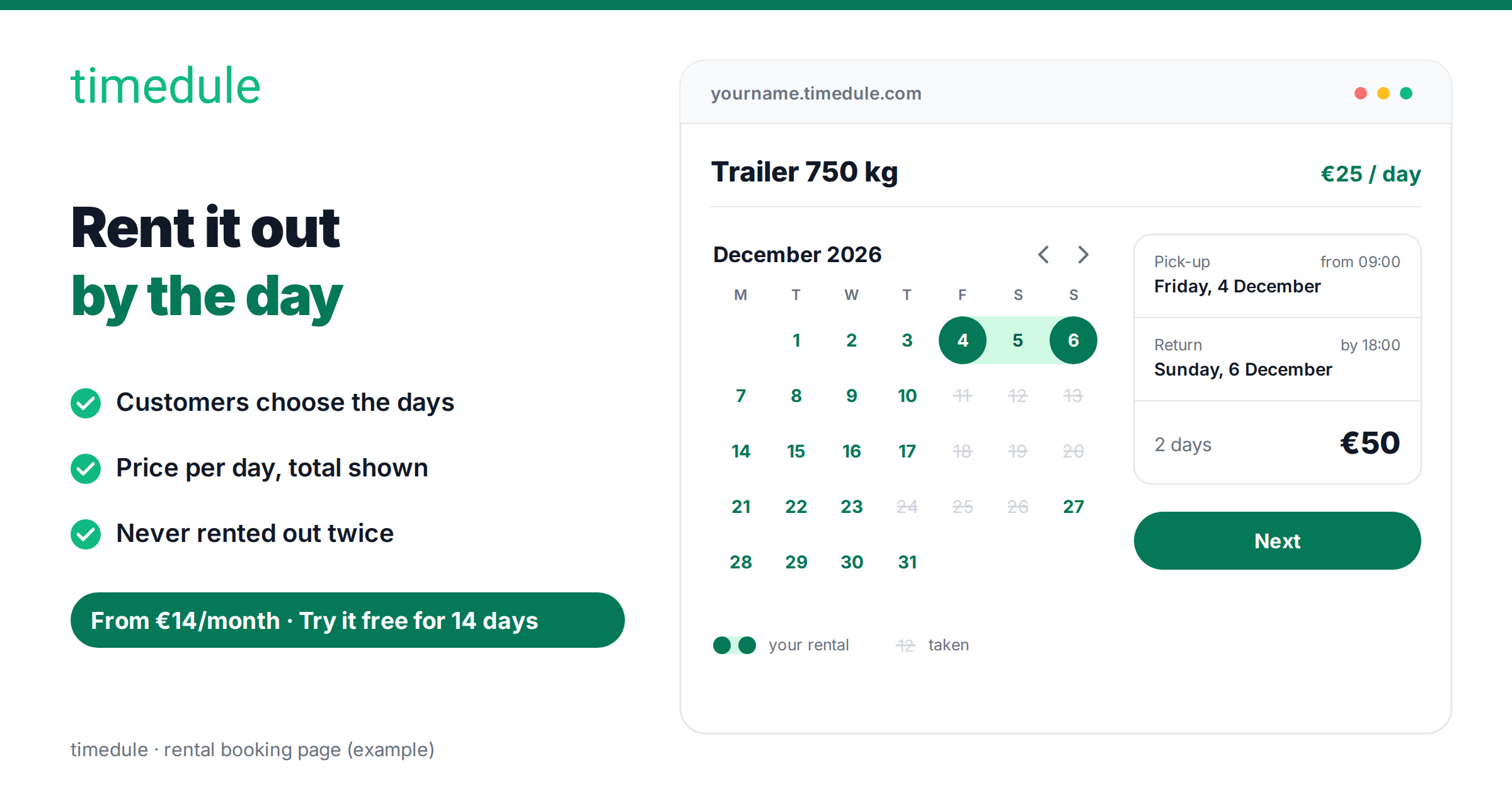
- Price per day. The booking page multiplies it by the number of days: Friday to Sunday is 2 days, so a €25 trailer costs €50. Each type of item is its own service with its own price.
- Shortest rental and Longest rental (in days). A carpet cleaner might be 1 to 3 days, a trailer 1 to 14. If you set both to 1, the item goes out for one day at a time and the customer only has to tap the pick-up day.
- Pick-up from and Return by. For example pick-up from 9:00 and return by 18:00, or Any time that day if you have a key box or a yard where items can be left.
- Which items this service rents out. Tick both trailers, for example. Each rental takes one of them, and a day is free on the booking page as long as at least one is free.
One rule worth knowing: an item can go out again on the day it comes back only if the return time is not later than the pick-up time. With return by 9:00 and pick-up from 9:00, a trailer returned on Sunday morning can go out again on Sunday. With return by 18:00, Sunday's next customer gets it on Monday. Choose the times that match how you really work.
Every service in timedule has a staff member, and a rental is no exception: assign yourself (or whoever hands the items over) to it. The rental does not block your own calendar, so you can still take other bookings on the same days.
Step 3: What your customer sees
On your booking page the customer picks the item, then a pick-up day in the calendar and a return day. Days that are already taken are crossed out. Next to the calendar they see the pick-up day with the time from which they can collect, the return day with the time by which to bring it back, and the total: “2 days, €50”. They enter their name and phone number and confirm.
The confirmation says the same thing in plain words: pick-up day, return day and the number of days. The day before pick-up, timedule sends a reminder by email or SMS (SMS reminders start going out once a subscription is active). The email reminder carries a cancel link: if plans change, the customer releases the item themselves and it is free on the booking page again straight away.
Need to know something before you hand an item over? Under Booking website → Booking form add Extra questions, for example “Car registration number” for a trailer or “Delivery address” if you bring the item to the customer. You can make a question required, and limit it to some service categories so that people renting a carpet cleaner are never asked about a tow bar.
Make booking easier for your clients
Let clients book online 24/7, send automatic reminders and cut no-shows. Set up your booking page in minutes.
No credit card required
Step 4: Take the payment when they book
A customer who has already paid turns up. Under Settings → Online payment you can ask for payment on the booking page: the whole rent or a fixed deposit, by bank link or card. The amount is calculated from the price per day and the chosen days, so nobody can book a week and pay for a day.
A security deposit against damage is a different thing: that one you take at pick-up, the way you do today, and give back when the item returns in good order. Write your rules (deposit, fuel, cleaning, late return) into the service description, so the customer reads them before booking.
Step 5: Repairs, phone bookings and the overview
When a trailer needs new lights or a cleaner is in for a repair, open the item under Equipment and click Add unavailable time, with a reason such as “repair”. For those days it is not offered to anyone, and the booking page shows the other items as usual.
Some customers will still call. Take those rentals with Add stay or rental in your dashboard: the same calendar, the same rules, and an item that is already out cannot be given away a second time. On the dashboard home you see every item on its own line by day, two weeks or month, so on Friday morning you know at a glance what goes out and what comes back.
Your checklist
- Stays and rentals switched on, items named Equipment.
- Every physical item added separately.
- One service per item type, booked by the Day, with price per day, shortest and longest rental.
- Pick-up and return times that match how you really hand items over.
- Extra questions for what you need to know before pick-up.
- Online payment switched on, rules for the security deposit in the service description.
- Repair days marked as unavailable time.
- Booking link in your Instagram and Facebook profiles, on your Google Business Profile and on your website.
Put your rentals on autopilot
timedule is the easiest way to rent out equipment online: customers check free days and book themselves, in the evening and at the weekend too, every rental is tied to a specific item, and nothing goes out twice. The price depends on how many staff take bookings, not on how many items you rent out, so a one-person rental business with thirty items is on the €14 plan. And because it is full booking software, the same account also takes your time-slot bookings, such as a paddle board by the hour. See everything timedule does or read how to add a booking button to your website.
Set it up today and the Saturday question answers itself. From €14/month, no commission, and we move your existing customers over for free.
Online booking for your industry
Ready to dive in?
Start your free trial today.
Try our online booking software, and see how easy it is to manage your appointments.